PS Tray Factory Screenshots
The System Tray Manager Screenshots - See the Power in Action
Comprehensive visual guide showing all features and capabilities of the system tray manager
PS Tray Factory - The System Tray Manager Screenshots
This comprehensive screenshot gallery demonstrates the seven key features of PS Tray Factory that make it the most powerful system tray manager available for Windows.
What You'll See in These Screenshots:
- Accessing system tray icon menus from the PS Tray Factory system tray menu
- Direct access to icon menus from the tray icons list of the system tray manager
- Expanding the PS Tray Factory system tray menu for full functionality
- Sorting and organizing system tray icons with drag-and-drop simplicity
- System tray icon properties dialog for customizing and changing system tray icons
- General options of the system tray manager for basic configuration
- Advanced options of the system tray manager for power users
These screenshots demonstrate how PS Tray Factory transforms a cluttered, overwhelming system tray into a clean, organized, and highly functional workspace that enhances your Windows experience and boosts productivity.
Before & After Comparison
Cluttered System Tray

System tray overwhelmed with 15+ icons, making it difficult to find what you need and consuming valuable taskbar space.
Clean & Organized

Only essential icons visible in the tray, with quick access to hidden icons through the PS Tray Factory menu.
Minimal System Tray
For users who prefer an even cleaner look, PS Tray Factory can create an ultra-minimal system tray with just the most essential icons:

Ultra-Clean System Tray
Maximum desktop real estate with only the most critical system icons visible. All other applications remain easily accessible through the PS Tray Factory menu.
1. Accessing System Tray Icon Menu from PS Tray Factory System Tray Menu
System Tray Manager Feature: Access hidden icon menus directly from the PS Tray Factory menu.

Direct Menu Access
You can hide an icon from the system tray and still access the menu of the hidden icon from the PS Tray Factory system tray menu. This revolutionary feature means you never lose access to your applications' functionality.
- No functionality loss - All menus remain accessible
- Clean tray appearance - Hide visual clutter
- One-click access - Instant menu activation
- Right-click support - Full context menu availability
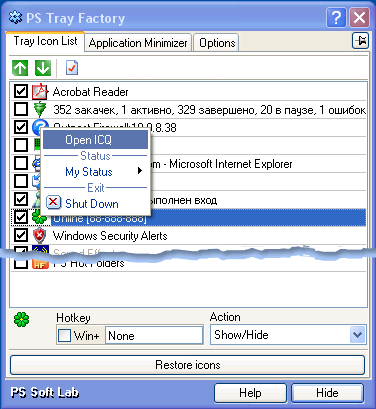
2. Accessing System Tray Icon Menu Directly from Tray Icons List
Advanced Access Method: Click directly on icons in the system tray manager's tray icons list.
Direct List Access
You can access the menu of a hidden icon directly from the tray icons list of the system tray manager by clicking on a selected icon. This provides even faster access to frequently used applications.
- Visual icon list - See all hidden icons at a glance
- Single-click activation - Faster than traditional methods
- Organized display - Icons sorted and categorized
- Quick selection - No need to navigate through menus
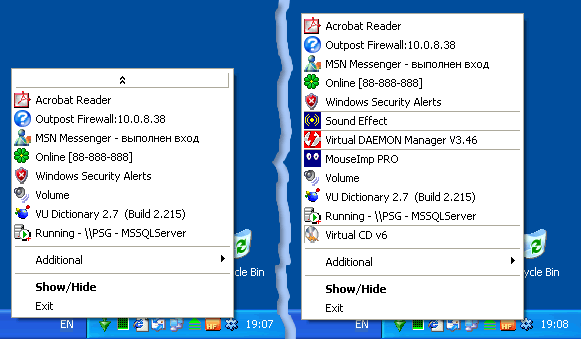
3. Expanding the PS Tray Factory System Tray Menu
Full Menu Expansion: See the complete PS Tray Factory menu system in action.
Complete Menu System
The expanded PS Tray Factory menu shows all available options and hidden applications in a well-organized, easy-to-navigate interface. This comprehensive view gives you complete control over your system tray management.
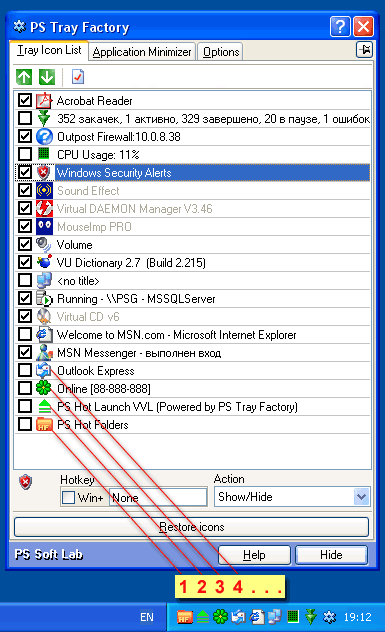
4. Sorting and Organizing System Tray Icons
Drag-and-Drop Organization: Arrange your system tray icons exactly how you want them.
Custom Icon Arrangement
PS Tray Factory allows you to sort and organize your system tray icons with simple drag-and-drop functionality. Create the perfect layout that matches your workflow and preferences.
- Drag-and-drop sorting - Intuitive organization
- Custom arrangements - Your preferred order
- Grouping options - Related apps together
- Persistent layout - Settings saved automatically
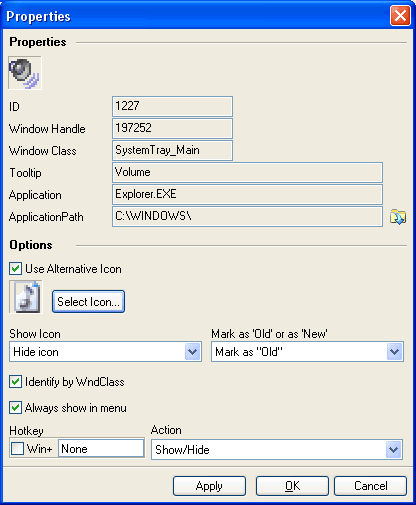
5. System Tray Icon Properties Dialog
Icon Customization: Change and customize system tray icons with the properties dialog.
Icon Properties Control
The system tray icon properties dialog provides comprehensive control over individual tray icons. Change icons, modify behavior, set visibility rules, and customize how each application appears in your system tray.
- Icon replacement - Use custom icons
- Visibility settings - Show/hide conditions
- Behavior modification - Custom click actions
- Advanced options - Fine-tune each icon
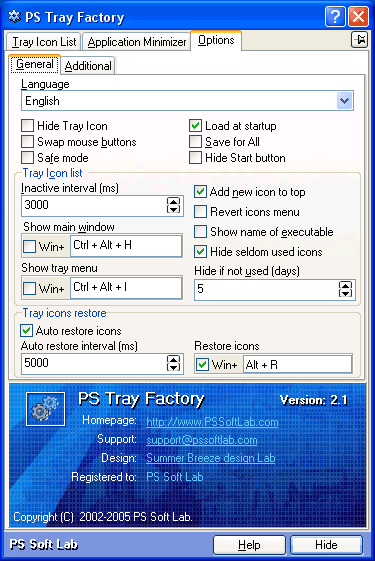
6. General Options of the System Tray Manager
Basic Configuration: Essential settings for your system tray manager setup.
Core Settings
The general options panel provides access to the most important settings for PS Tray Factory. Configure basic behavior, startup options, and fundamental system tray management preferences.
- Startup behavior - Launch with Windows
- Basic preferences - Core functionality settings
- User interface - Menu and display options
- System integration - Windows compatibility
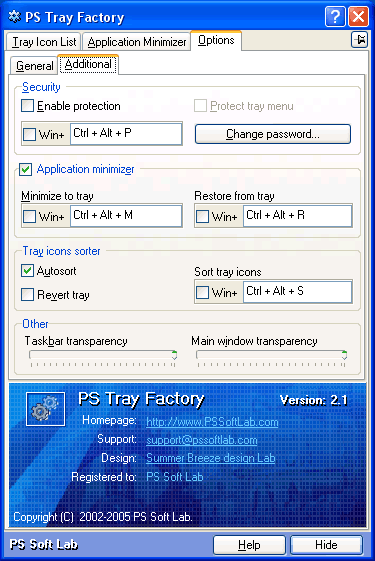
7. Additional Options of the System Tray Manager
Advanced Configuration: Power user settings for maximum customization and control.
Advanced Settings
The additional options panel unlocks the full power of PS Tray Factory with advanced settings for experienced users. Fine-tune every aspect of your system tray management experience.
- Advanced rules - Complex visibility conditions
- Security options - Password protection features
- Performance tuning - Optimize resource usage
- Expert controls - Professional-grade options
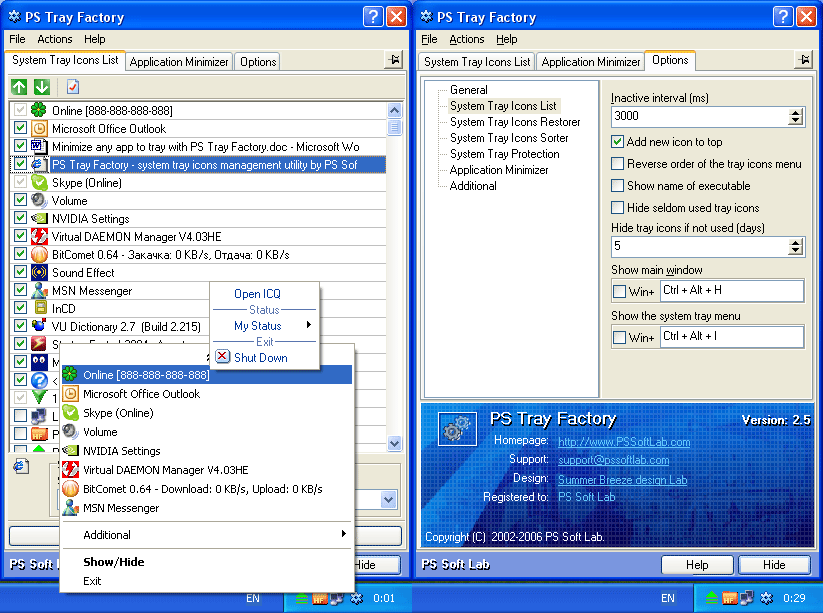
PS Tray Factory Interface
The PS Tray Factory main interface provides complete control over your system tray icons with an intuitive, user-friendly design:
Main Interface
Complete control panel for managing all your system tray icons. Drag and drop to reorder, hide/show icons, and configure settings.
Streamlined interface showing icon management options. See all your tray icons at a glance and manage their visibility easily.
Key Features in Action
Hide Low-Activity Icons
Remove visual clutter by hiding icons you rarely interact with. They remain functional but don't consume valuable tray space.
Organize & Sort
Arrange your system tray icons in any order you prefer. Group related applications together for better workflow.
Auto-Restore
Automatically restore your tray icon layout after Windows Explorer crashes or system restarts. Never lose your organization.
Password Protection
Protect your carefully configured tray setup with password protection. Prevent unauthorized changes to your organization system.
Industry Recognition
PS Tray Factory has received numerous awards and positive reviews from leading software sites:

Shareup.com
File Hungry
File Transit
FindMySoft
Technical Specifications & Compatibility
System Requirements
- Operating System: Windows 7/8/8.1/10/11
- Architecture: 32-bit and 64-bit support
- RAM: 512 MB minimum (1 GB recommended)
- Disk Space: 10 MB free space
- Processor: Any Intel or AMD processor
Key Advantages
- Lightweight: Minimal system resource usage
- Stable: Crash-resistant and reliable operation
- Fast: Instant response to user actions
- Compatible: Works with all Windows versions
- Safe: No system modifications required
Complete Screenshot Gallery Summary
This comprehensive screenshot collection demonstrates why PS Tray Factory is the ultimate system tray manager for Windows. Every screenshot shows real functionality that you can use immediately after installation.
Hide Clutter
Remove visual noise while maintaining full functionality
Organize Menus
Access all applications through organized, logical menus
Full Control
Comprehensive settings for every aspect of tray management
Experience the Power of PS Tray Factory
These screenshots show just a glimpse of what PS Tray Factory can do for your Windows experience. Download the free trial today and discover how a properly organized system tray can transform your productivity and desktop aesthetics.
Learn More
Want to know more about PS Tray Factory's features and capabilities? Explore our additional resources: