PS Hot Launch VVL Online Help
Complete guide to using PS Hot Launch VVL application launcher
About PS Hot Launch VVL
PS Hot Launch VVL is a powerful and lightweight application launcher that provides instant access to your favorite programs, files, and folders through customizable hotkeys and quick launch menus.
Lightning Fast
Launch applications instantly with customizable keyboard shortcuts and quick access menus.
Highly Customizable
Configure hotkeys, organize applications in groups, and personalize your launch experience.
Key Features
Custom Hotkeys
Assign any key combination to launch your favorite applications instantly.
Application Groups
Organize applications into logical groups for better management and access.
Quick Launch Menu
Access all your applications through a convenient popup menu system.
File & Folder Support
Launch not just applications, but also documents, folders, and any file type.
Minimal Resource Usage
Runs efficiently in the background without impacting system performance.
System Tray Integration
Convenient system tray icon for easy access and configuration.
System Requirements
Minimum Requirements
| Operating System: | Windows 7 or later |
| Memory (RAM): | 64 MB |
| Processor: | Pentium III or equivalent |
| Hard Disk Space: | 2 MB |
Compatibility
- Windows 11 (all editions)
- Windows 10 (all editions)
- Windows 8.1
- Windows 8
- Windows 7
- Both 32-bit and 64-bit versions
Getting Started
Download and Install
Download PS Hot Launch VVL from our website and run the installer. The program is free and requires no registration.
Download NowFirst Launch
After installation, PS Hot Launch VVL will automatically start and add an icon to your system tray. Look for the rocket icon in the notification area.
Add Your First Application
Right-click the system tray icon and select "Configuration" to add your first application. Browse to your favorite program and assign it a hotkey.
Test Your Setup
Press your assigned hotkey to launch the application. You can also access applications through the quick launch menu by right-clicking the tray icon.
Understanding the Interface
This section introduces PS Hot Launch VVL: what it does, basic concepts (tray icon, configuration tree, groups, hotkeys) and a quick tour of the UI.
 Fig. 1 — Main Window Overview
PS Hot Launch is a lightweight launcher accessible from the system tray. You configure items in a tree, group them and assign hotkeys for instant launching.
- System tray access
- Configuration window with tree view
- Per-item properties (path, parameters, working dir, hotkey)
Configuration
Configure PS Hot Launch VVL by adding applications, organizing them into groups, and setting up hotkeys for quick access.
Configuration Methods
Drag & Drop
Drag files from Explorer directly into the configuration window
Add Menu
Use Add → Add File/Folder menu options for precise control
Add Silently
Quick addition without opening properties dialog
Adding Files
Add file via dialog
- Open Add → Add File
- Select file in Open dialog and click Open
- Item is added — edit Display Name and other properties
 Fig. 2.1 — Add File dialog
Adding Folders
Add folders to quickly access frequently used directories. Use Add → Add Folder, select the directory, and click OK.
Creating Groups
Groups let you organize commands and shortcuts logically (Office, Internet, Games...). Create groups first, then add items into them.
How to create a group
- Open Configuration window from tray icon → Configuration
- Click the Add button arrow → Add Group
- New group appears in the tree — rename inline or via properties
- Optionally assign a hotkey to expand/collapse the group
 Fig. 1.1 — Add Group
 Fig. 1.2 — Rename inline in the tree
Tips: use meaningful group names and organize by task. Groups can contain subgroups and separators.
Adding Separators
Separators help organize your menu visually by creating dividing lines between groups of related items.
How to add separators
- Right-click in the configuration tree where you want the separator
- Select "Add Separator" from the context menu
- The separator appears as a horizontal line in your menu
Setting Up Hotkeys
Assign hotkeys to items so they launch instantly. Use combinations with modifiers — Win, Ctrl, Alt, Shift + letters/numbers.
How to assign
- Select item in configuration tree
- Click Hotkey field (properties) and press combination
- Green highlight indicates success, red indicates conflict
- Click Apply/OK to save
 Fig. 3.1 — Hotkey assignment
 Fig. 3.2 — Quick Launch Menu with groups
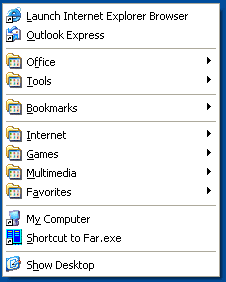 Fig. 3.3 — Hotkey testing
Options
 Options Dialog Window
General Options
Run on Windows Startup
Automatically start PS Hot Launch VVL when Windows boots up.
How it works:
- Adds PS Hot Launch to Windows startup
- Program loads silently in background
- All hotkeys available immediately
- Recommended for daily users
PopUp Menu On Mouse Hover
Make the taskbar tray menu appear when you point your mouse there and hold it for the specified interval.
Configuration:
- Enable hover activation
- Set interval time (in milliseconds)
- Instant access without clicking
- Perfect for frequent users
Startup Settings
Autostart Configuration
Appearance
Language Settings
PS Hot Launch VVL supports multiple interface languages. Choose your preferred language from the dropdown menu in the Options dialog.
Available Languages:
Mouse & Tray Settings
Show Tray Menu On Click
Choose which mouse button activates the tray menu:
- Left mouse button: Use double right-click for Configuration
- Right mouse button: Use double left-click for Configuration
- Show Hot keys: Display hotkey shortcuts in menu
Advanced Features
Custom Icon
Replace default tray icon with your own ICO file for personalization.
Icon Tooltip
Customize the text shown when hovering over the tray icon.
Backup your PS Hot Launch VVL configuration to prevent data loss and easily transfer settings between computers.
Backup Configuration
Save your current settings to a backup file (.pshlconfig).
Restore Configuration
Load settings from a previously saved backup file.
Backup File Contents
- All application entries and groups
- Assigned hotkey combinations
- Menu organization and structure
- Program settings and preferences
Troubleshooting
Hotkeys Not Working
- Check for hotkey conflicts in Options
- Ensure PS Hot Launch is running
- Try different key combinations
- Restart the application
Tray Icon Missing
- Check Windows notification area settings
- Click arrow to show hidden icons
- Restart PS Hot Launch VVL
- Check if application is running in Task Manager
Support & Contact
Get Support
Need help with PS Hot Launch VVL? Our support team is ready to assist you.
About PS Soft Lab
Professional Windows utilities since 1999.
- Founded: 1999, Ukraine
- Specialization: Windows productivity tools
- Products: PS Tray Factory, PS Hot Folders, PS Hot Launch VVL